
Client
Digital Advantage
Brief
Create an animation for Digital Advantage for Christmas.
Ideas
On the first day, I was coming up with lots of different ideas for the animation and created some storyboards and sketches for the concept design. Some of the ideas that I didn’t use were, shaking a snow globe and are avatars being snowmen, opening a present and are logos coming out of it, Avatar are nuts getting cracked by nutcracker, and the one I almost went with was a Christmas tree and the avatar baubles with lights flashing around.

Illustrator/Photoshop
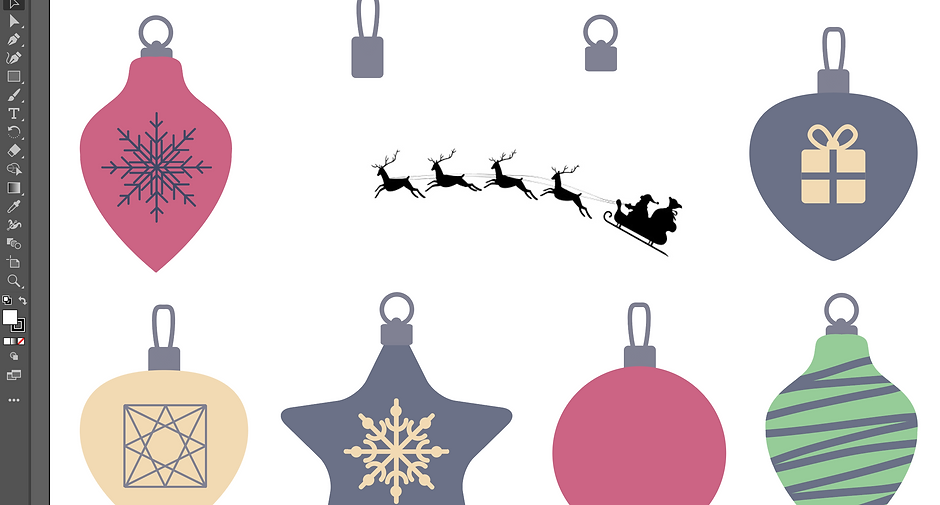
I used this to edit the images before adding them to Keynote. I used Illustrator to create the baubles I made some edits to the avatars I gave them a white background to make them look more realistic
Keynote
This is what I used to create all the animations. I have used keynote in the past but never to make a proper animation most have been short and simple but for this work, it was a lot more complicated and I had to use keynote to its fullest to create this animation.

How I did it
I first had to get all the assets I needed to create the animation once I did that I added them all into Keynote. I had to place everything in its correct places first before I started the animation part, once I was finished with that I started on the animation. I used the move, rotate, and pop tool to make the animation, the move tool was to make everything movie into the right place by dragging them, the rotate tool was for the baubles jingle and stand out more and the pop tool was also for the baubles to make them pop on the screen when Santa put them on the tree. Once I had finished all that I had to add some sound after I got all the sound in the right places I had t add a few delays to the animation so it all flowed properly with the sound.

Skills
I have learned a lot of different skills from doing this animation such as:
How to use delays more efficiently
Timing animations
How to add sound effects
How to add an animated gif to the background
How to find sound effects
How to export in Keynote

Tools
I used a lot of different types of tools for this project as I used both Photoshop and Keynote. I have used animation tools on keynote such as the move, rotate, and pop tool to make the animation, on Photoshop and Illustrator I used tools such as magic wand tool and direct collect tool to adjust and make changed to my assets

Font
I used dafont.com to get my font. I searched for Christmas options as it fits the mood really well as it’s a Christmas animation it took a while to find the perfect ones to choose out of. After a while, I chose a few but eventually chose the final one you see today. The final fount I chose was called Christmas Mint.

My experience
I really enjoyed working on this project it was my first proper animation on keynote and I think it turned better than I thought it would, I’m excited to do more animation work in the future using all the skills I have learned.

Music and Sound effects
At first, I was going to make the animation a GIF with no sound but after I created the animations it felt like it was missing something, adding the sound gave it a different feel it improved the animation a lot, giving it more character and charm. with how I did the sound effect you can almost understand what's going on without the animation. I love how it turned out with the sound, I used envato for all the sounds.

Final product
Here is the full animation. I think the timing of the animations with the sounds where great and it all works together perfectly.
